
How to Limit Rows in a CRM Analytics Recipe Using Rank and Partition
Salesforce CRM Analytics recipes have no LIMIT clause. When a dataset run drags on and you only want a small test slice, use rank + partition + filter to cap rows deterministically. Full worked example, the top-N-per-category variation, and the gotchas to watch.
 Swarnil Singhai
6 min read
Swarnil Singhai
6 min read
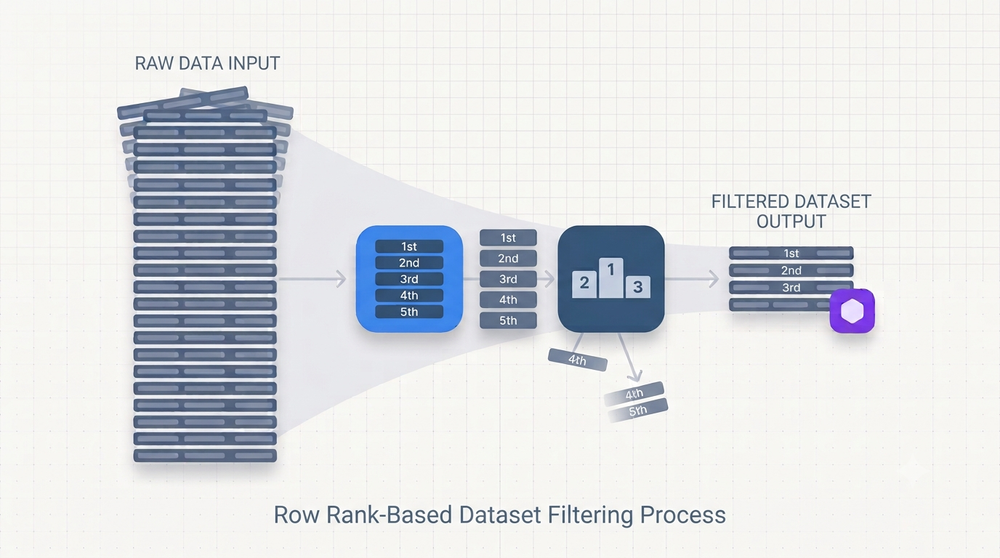
How to Limit Rows in a CRM Analytics Recipe Using Rank and Partition
A practical guide to capping dataset size in Salesforce CRM Analytics (CRMA) when there's no LIMIT button.
The problem: your recipe runs forever, and you only wanted a sample
If you build datasets in Salesforce CRM Analytics, you've probably hit this wall. You're iterating on a recipe — adding a formula, tweaking a join, fixing a flag — and every single test run chews through millions of rows. Each run takes minutes. You're not validating business logic against the full population; you just want a smaller slice to see if the thing works.
So you go looking for the obvious control: a "limit rows" setting on the output node. It isn't there. Coming from SQL, your instinct is LIMIT 25000 or TOP 100. CRMA recipes don't have that clause either. The input node's "sample size" only affects the preview — the full run ignores it entirely.
This trips up a lot of people. The good news: CRMA absolutely can cap rows deterministically. You just do it the way the tool is designed for — by ranking every row and filtering on the rank. This article walks through exactly how, with a worked example, and is honest about where the technique bites back.
The core idea: number the rows, then keep the ones you want
The technique has three moving parts, and they always appear together:
- A partition — defines the scope of the ranking. One global group, or one group per category.
- A rank — assigns each row a number (1, 2, 3…) within its partition, in an order you choose.
- A filter — keeps only the rows whose rank is at or below your cutoff.
Think of it like handing out numbered tickets at a deli counter, then telling everyone with a ticket above 10 to go home. The partition decides whether there's one counter or several; the ordering decides who gets ticket #1; the filter sets the cutoff.
In CRMA, the ranking is done by a Compute Relative transformation (the "multi-row formula" toggle in the Transform node). This is CRMA's window-function engine — the equivalent of ROW_NUMBER() OVER (PARTITION BY … ORDER BY …) in SQL.
The functions you'll use
Inside a multi-row formula, the key function is:
row_number()
It emits a running sequence — 1 for the first row in the partition, 2 for the next, and so on — based on the Order By you specify. Two settings shape its behavior:
- Partition By — the field that groups rows. Every distinct value starts its own sequence back at 1.
- Order By — the field (and direction) that decides which row is "first."
DESCon a date means the newest row gets number 1.
A close cousin is rank(), which behaves the same until it hits ties (equal order-by values), where it repeats numbers and skips ahead. For row-limiting you almost always want row_number(), because it guarantees a unique 1-2-3 sequence with no gaps — so "keep rows ≤ 10" always yields exactly 10 rows.
Worked example: keep the 10 most recent accounts
Say you have an AccountsTable dataset and want a tiny 10-row version for testing. Here's the full pattern.
Step 1 — Add a constant partition field
You want the entire dataset ranked as one continuous sequence, not restarted per category. So first add a plain Formula field that gives every row the same value:
| New field | Formula | Result |
|---|---|---|
partition_all |
'ALL' |
Every row = "ALL" |
Now all rows belong to a single group.
Step 2 — Rank with a multi-row formula (Compute Relative)
Add a Compute Relative field configured like this:
| Setting | Value |
|---|---|
| Formula | row_number() |
| Partition By | partition_all |
| Order By | LastModifiedDate — Descending |
| Output type | Number |
This produces a new row_num column. Because every row is in the 'ALL' partition and we ordered newest-first, the most recently modified account gets row_num = 1, the next gets 2, and so on down the whole table.
Step 3 — Filter to the cutoff
Add a Filter node:
row_num ≤ 10
Done. The output dataset now holds exactly the 10 most recently modified accounts.
What the data looks like at each step
Here's a shrunk illustration. Imagine five accounts (we'll keep the top 3 instead of 10 to fit the page):
Before ranking:
| AccountName | LastModifiedDate | partition_all |
|---|---|---|
| Northwind | 2026-06-28 | ALL |
| Acme | 2026-06-30 | ALL |
| Globex | 2026-06-25 | ALL |
| Initech | 2026-06-29 | ALL |
| Umbrella | 2026-06-26 | ALL |
After row_number() ordered by date DESC:
| AccountName | LastModifiedDate | row_num |
|---|---|---|
| Acme | 2026-06-30 | 1 |
| Initech | 2026-06-29 | 2 |
| Northwind | 2026-06-28 | 3 |
| Umbrella | 2026-06-26 | 4 |
| Globex | 2026-06-25 | 5 |
After filter row_num ≤ 3:
| AccountName | LastModifiedDate | row_num |
|---|---|---|
| Acme | 2026-06-30 | 1 |
| Initech | 2026-06-29 | 2 |
| Northwind | 2026-06-28 | 3 |
The ordering column is what makes this meaningful — you're not keeping random rows, you're keeping the newest ones.
The powerful variation: top-N per category
Change one setting and the same pattern answers a completely different question. Instead of partition_all, partition by a real field:
| Setting | Value |
|---|---|
| Partition By | Region |
| Order By | ARR — Descending |
Now row_number() restarts at 1 for each region, ranked by revenue. Filter row_num ≤ 5 and you get the top 5 accounts by ARR in every region — not the top 5 overall. This "top-N per group" pattern is the real workhorse: latest support case per customer, highest-value opportunity per account, most recent login per user. Same three nodes, different partition.
Why this is better than the alternatives
There are other ways to shrink a dataset, and it's worth knowing when each fits.
Date filter (e.g. "last 90 days") is the simplest and, for testing, often the best — it also speeds up the entire recipe because fewer rows flow through every downstream node. The catch: you don't control the exact count, and you only see recent data.
Hash bucketing (assign each row a number 0–99 via a modulo on a timestamp, keep buckets 0–9 for ~10%) samples evenly across all dates and is cheap because it needs no sort. But it gives you approximately N rows, not exactly N.
Rank + filter — the technique here — is the one to reach for when you need an exact count, or when you need top-N-per-group semantics that nothing else provides.
Limitations and gotchas (read before you ship)
The rank-and-filter approach is precise, but it has sharp edges.
1. It forces a sort, which costs performance. row_number() can't number rows without ordering them first, and on a very large dataset that global sort is expensive — sometimes more expensive than the runtime you were trying to save. If your only goal is a faster test loop, a date filter placed early in the recipe (right after the input, before the joins) usually wins.
2. Partition scope is easy to get wrong. If the platform forces a Partition By value and you accidentally partition by a real field instead of a constant, your rank restarts per group. Then "keep row_num ≤ 25000" quietly keeps 25,000 rows per group — and your "capped" dataset balloons far past your target. Always double-check: global cap needs a constant partition.
3. rank() vs row_number() on ties. If two rows share the same order-by value, rank() assigns them the same number and skips the next — so a "≤ 10" filter might return 9 or 11 rows. Use row_number() for exact counts.
4. Filter early where you can, rank late where you must. Salesforce's own guidance is to filter as early as possible to reduce the rows every node has to process. But a rank needs the rows it's ranking, so the rank-and-filter block sits near the end of the recipe. That means all the upstream heavy lifting still runs on the full data — the cap only shrinks what's stored, not what's processed.
5. It's a testing tool, not a business rule — clean it up. A capped dataset feeding a live dashboard will silently under-report every number. Name the temporary nodes something loud like TEMP_TEST_LIMIT_DELETE_ME, and remove them before the recipe goes to production. Also drop the helper columns (partition_all, row_num) from the final output so they don't clutter the schema.
6. Display limits are separate. Even with a full dataset, a single CRMA query returns a capped number of rows for display — it doesn't change the underlying calculations. Limiting the dataset and limiting a query are two different levers; don't confuse the two.
When to use which method — a quick rule of thumb
- Just want faster test runs? → Date filter, placed early.
- Want a representative sample, size flexible? → Hash bucketing.
- Need exactly N rows, or top-N per category? → Rank + partition + filter (this article).
Reach for rank-and-filter when precision or per-group logic is the point. For everything else, a humble early filter is usually the smarter move.
Wrapping up
CRM Analytics doesn't hand you a LIMIT clause, but it gives you something more expressive: rank every row with a Compute Relative multi-row formula, then filter on that rank. Control the scope with Partition By, the priority with Order By, and the cutoff with a Filter node. Master the three together and you can slice a dataset to an exact size, grab the newest records, or pull the top performers in every region — all without a line of SQL. Just remember the sort cost, mind your partition scope, and tear down the scaffolding before it reaches production.
